Introduction
Streamlit is an easy to use python framework to build interactive apps. As opposed to fully featured frameworks like Django and Flask, Streamlit is very opinionated as it has fewer features, but the advantage is you can deploy Streamlit app in under 5 minutes with no knowledge of APIs or routes. Streamlit has recently gotten very popular, especially among data scientists as a quick way to present their findings.
Openscale allows you to sync your smart scale to your smartphone. It also has options to export the data, which I've synced with Dropbox to store in a particular folder. In this example, I'll use the weight data export from Openscale to show historic variation of weight data interactively
This tutorial will have three sections:
- Build - Building the app from scratch.
- Package - Packaging the app such that it can be deployed by anyone on their local computer, batteries included.
- Deploy - Deploying it for free on a publicly accessible website.
Build
Basic Setup
Let's start by creating a new folder as our root.
It's a general practice for any sort of self-contained projects to start with by creating a virtual environment. There are
very good reasons to use a virtual environment, which I'll not go into detail here. Let's create a
venv and activate it
We'll also need to install the libraries that we'll be using for the project. Instead of manually installing them one by one, the standard approach is to create a
requirements file which holds the information on the different libraries and their versions. Let's create a file called
requirements.txt which has the following contents.
Now, we install the requirements using the following command. This should take a few minutes to install all the dependencies. These will be installed within the
venv folder keeping the dependencies completely contained within that folder.
Note: If you're using git for version control, it is a good idea to add
venv into
.gitignore to prevent all the libraries from getting checked in
Now let's add the entrypoint into the app. This will be the
main.py file which has the following content.
The last thing to do as part of the setup is to create a
/src folder and add the following empty files into it.
Your directory structure should look like this now:
Just to make sure everything is working correctly till now, let's edit
ui.py and add the following content into it.
Now run the following command in the terminal after moving to the root folder
You should see a process running with an output similar to below.
You should also see the following screen if you navigate to
localhost:8501 in your browser:
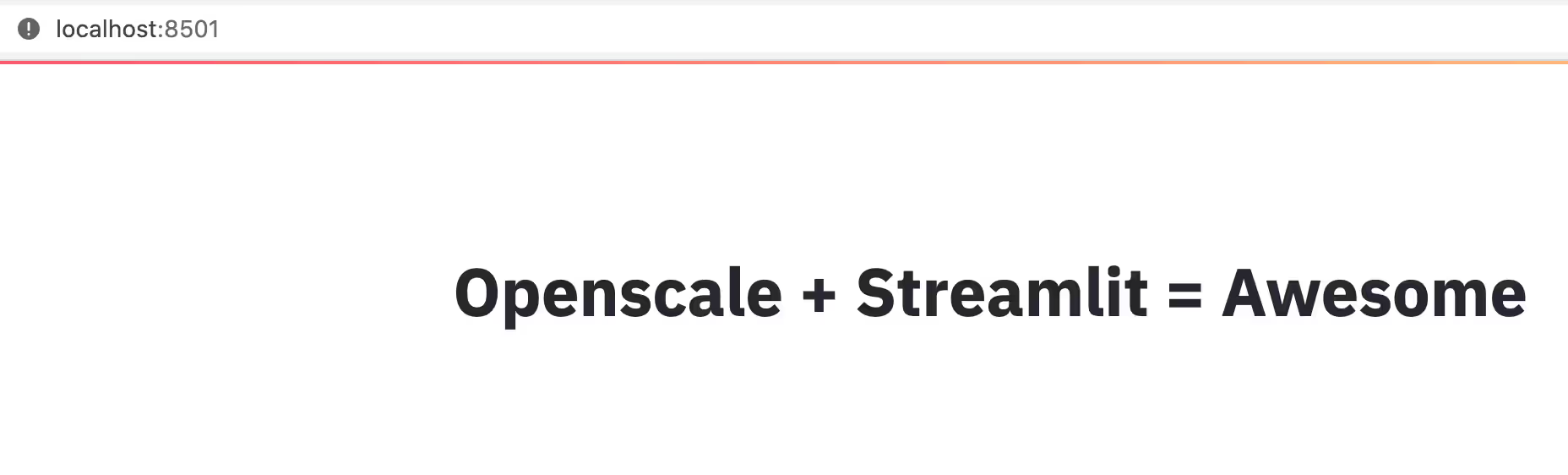
Your basic streamlit app is ready!
Adding the App content
Now let's populate each file to actually do something useful.
dropbox_aux.py
This file contains the auxilliary functions required to get the weights data using the Dropbox API.
-
get_latest_file_name_from_dropbox- Gets the list of files matching a pattern from a particular folder and returns the latest one (most recently updated) -
download_file_data_from_dropbox- Downloads the particular file from dropbox
Here is an example snippet of data after downloading from dropbox:
plot.py
This file contains the plotting functions. Here I'm using the
plotnine package which is heavily inspired from the amazing
ggplot package in
R.
-
plot_and_save- Plots the weight data and saves the plot into a temporarily file to plotted bystreamlit
ui.py
This is the main file which wraps over all the other functions. It has a single function
run_streamlit_ui.py which does the following:
- Setup the high-level variables
-
DROPBOX_KEY- You will need to get a Dropbox API key for to access the Dropbox API -
FOLDER_NAME- This is the folder in which the exports from theopenscaleapp is situated. -
TEMP_FILE_NAME- This could be anything.
-
- Creates the inputs for the streamlit app
-
username- Name of the user -
date_start- Start date of the plot -
date_end- End date of the plot -
smooth_factor- How much the loess curve should be smoothened
-
- Get weights data from dropbox
- create a Dropbox connection class
- get the latest file name from dropbox
- download the data
- Cleans the data with the inputs for plotting
- Saves the plot into a temporary file
- Plots the image file on Streamlit
Running everything locally
Now that we've the app content also ready, we can try running it locally. As mentioned before, we're providing the
DROPBOX_OPENSCALE_ACCESS_KEY as an environment variable.
You should be able to the full output similar to below:
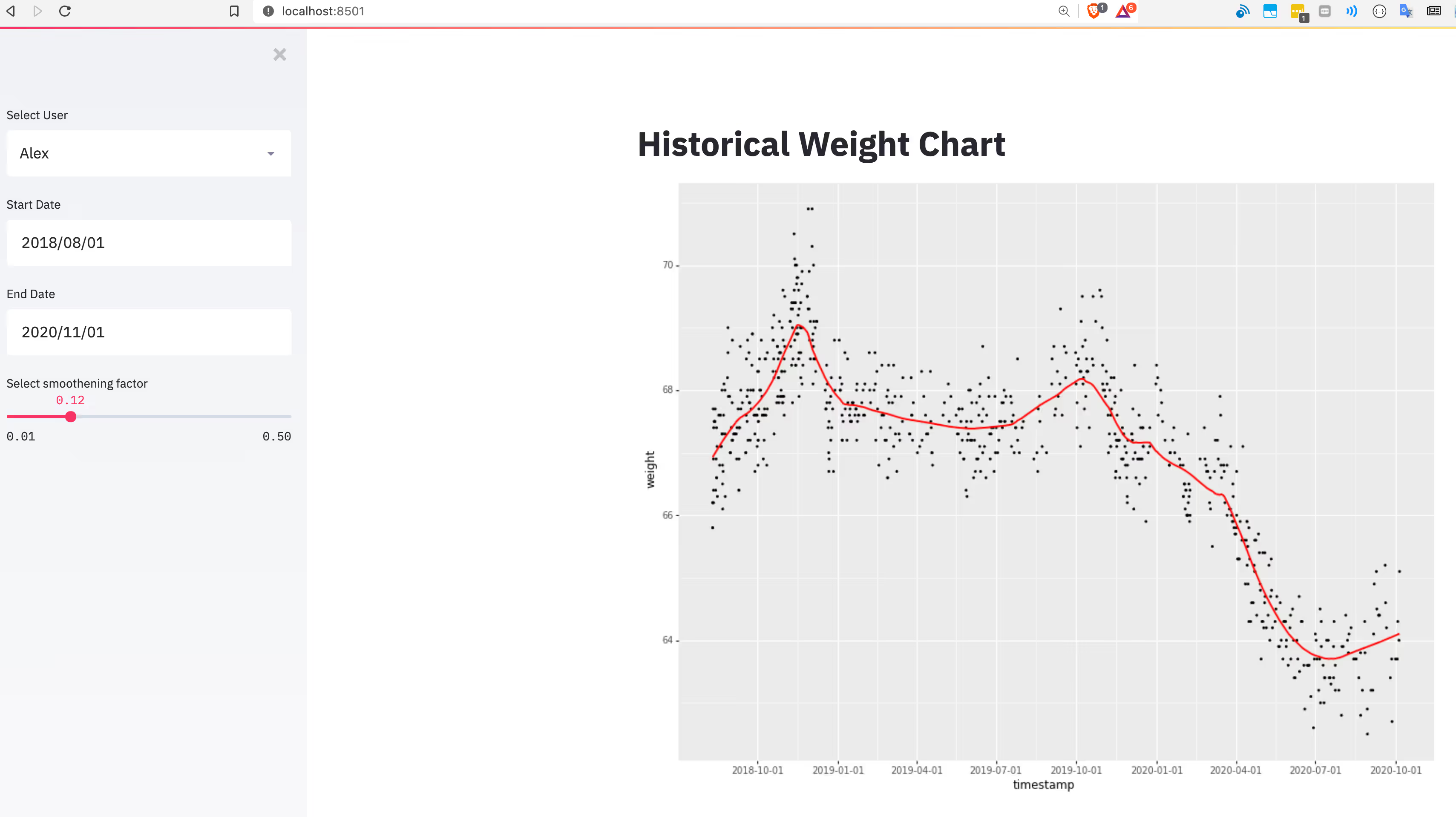
I seem to be slowly gaining the weight I lost during the lockdown!
Deploying it in Heroku
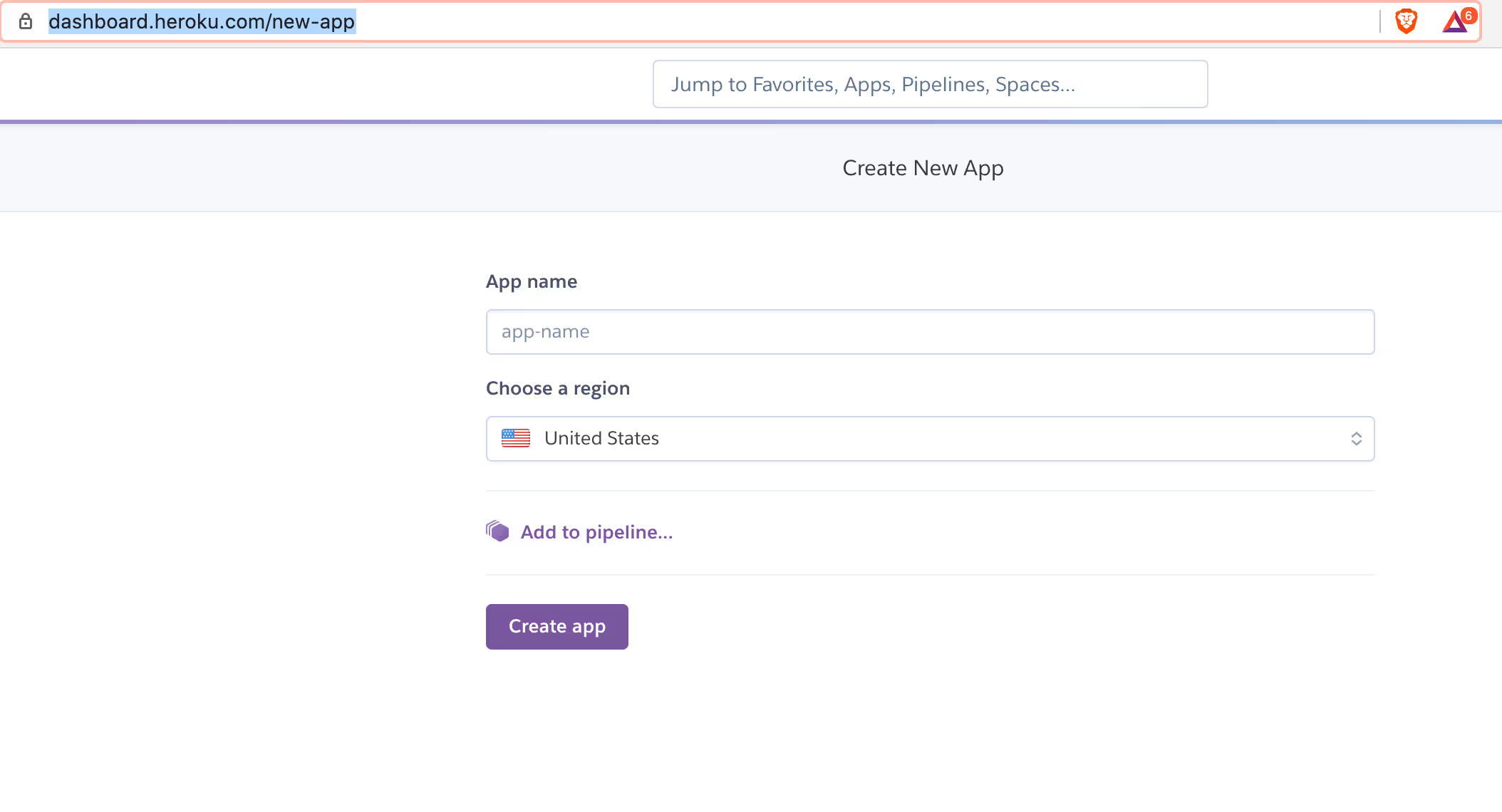
Step 1: Add app in the Heroku dashboard
You can go to the new app screen once you've created a heroku account to create a new app.
Here I'm creating a new app
streamlit-openscale-test.
Step 2: Login to Heroku, create a git repository and add Heroku as remote
First, download and install the Heroku CLI. Then log in to your Heroku account and follow the prompts to create a new SSH public key.
Step 3: Create a git repository and add Heroku as remote
Run the following command in your terminal to create a git repository in your root folder and add heroku git as a remote
Optionally you can add github as a remote as well for version control
Step 4: Add the Heroku configuration files
Procfile
setup.sh
Your folder structure should look like this now:
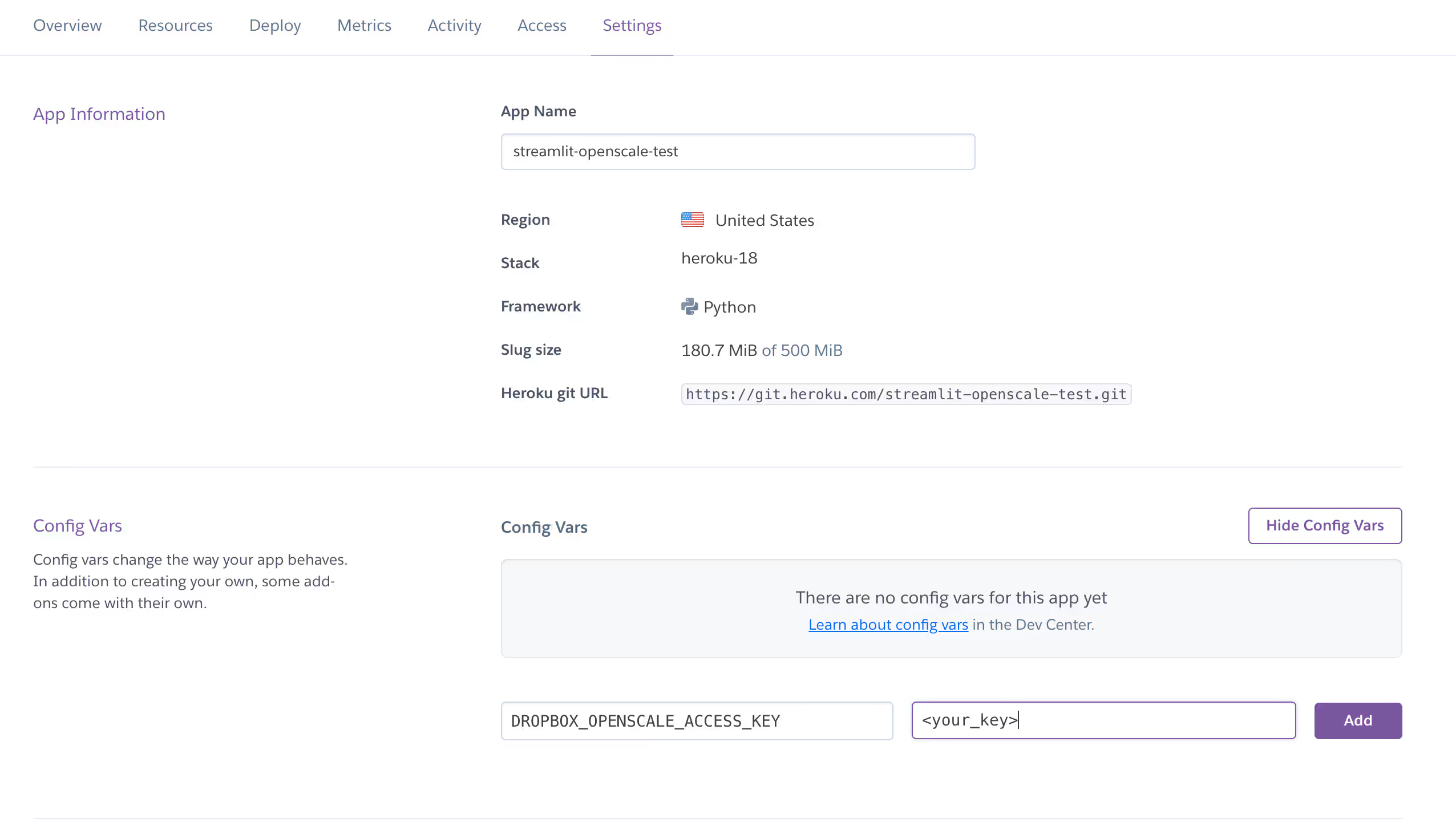
Step 5: Add the Heroku env vars
You can add the configuration variables, in this case
DROPBOX_OPENSCALE_ACCESS_KEY in the
heroku configuration page
Step 6: Deploy!
Once the configuration has been added, we can deploy it to heroku using the heroku command line.
<!-- ## (Optional) Packaging it using Docker
- docker
- docker-compose -->
Check it out!
You can checkout a live version of the app here. Note that I'm running it on free dynos, it might take a little bit of time to load.